

Set up regfish DynDNS on a UniFi Dream Machine or Gateway
A UniFi gateway can report the public IPv4 address of your connection to
regfish DynDNS by itself. A name such as
home.example.com then always points to your connection, even when your provider changes the
address.
This guide applies to every gateway managed through UniFi Network: Dream Machine (including Pro and SE), Dream Router, Cloud Gateway (Ultra, Max), the Gateway series (UXG) and the older Security Gateway (USG).
At a glance
Section titled “At a glance”| Field in UniFi | Value |
|---|---|
| Service | Custom |
| Hostname | the name to update, for example home.example.com |
| Username | any value, the field just must not be empty, for example regfish |
| Password | your DynDNS token |
| Server | dyndns.regfish.de/?fqdn=%h.&ipv4=%i&forcehost=1&token=%p |
The steps below explain every value.
Prerequisites
Section titled “Prerequisites”- a domain at regfish that uses the regfish nameservers (DynDNS writes to the zone at regfish, with other nameservers the change has no effect)
- DynDNS enabled in the dash and its token
- administrator access to UniFi Network
- a gateway that receives the public IPv4 address directly on its WAN port (see Double NAT)
Step 1: Get the DynDNS token from the dash
Section titled “Step 1: Get the DynDNS token from the dash”Open Domains → your domain → DynDNS, direct address:
dash.regfish.com/my/domains/<tld>/<sld>/dyndns
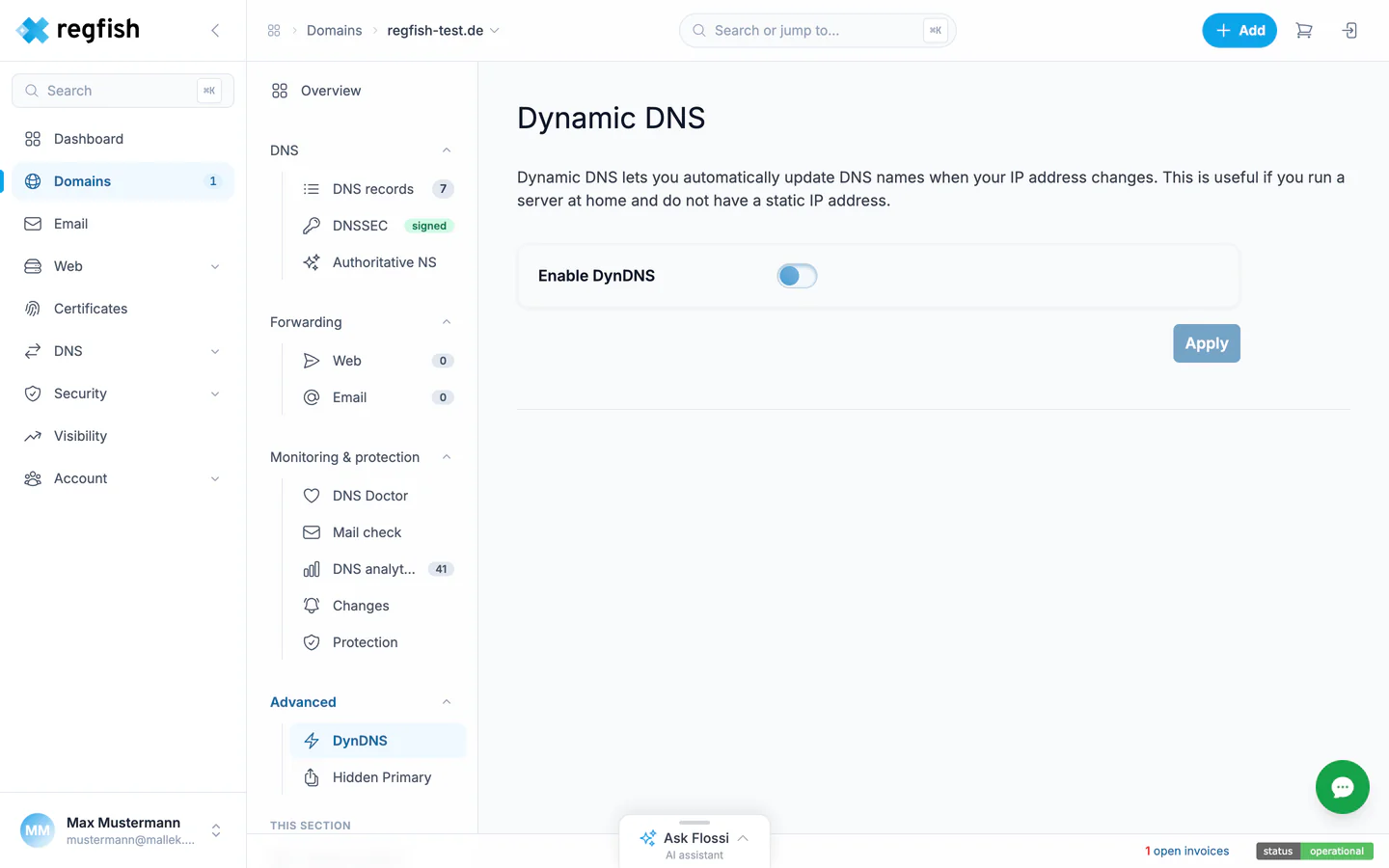
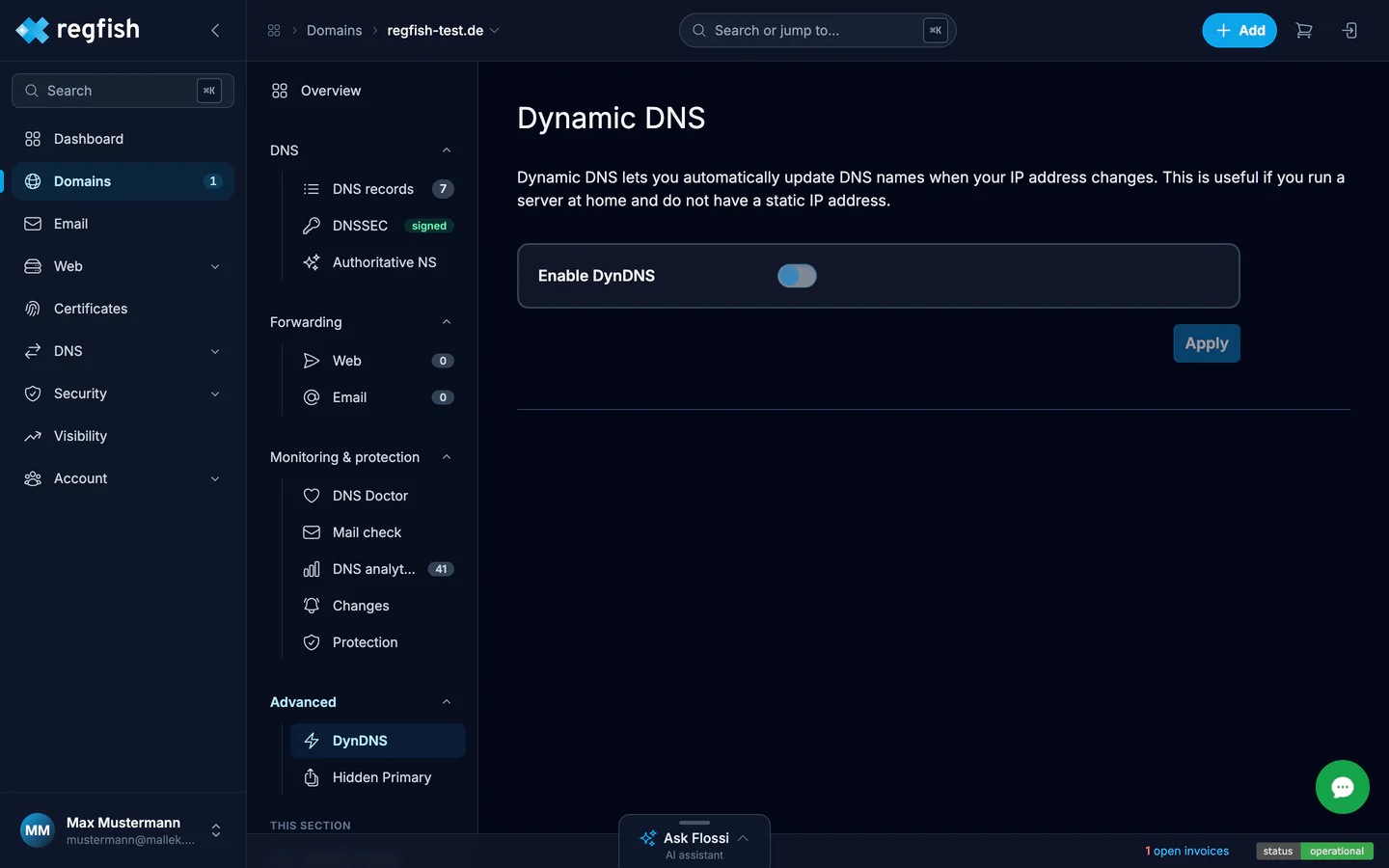
If DynDNS is still off, set the Enable DynDNS switch and confirm with Apply. Copy the token shown.
Step 2: Open Dynamic DNS in UniFi Network
Section titled “Step 2: Open Dynamic DNS in UniFi Network”In UniFi Network, open Settings → Internet and select the WAN connection your line runs on, usually Primary (WAN1). In the Dynamic DNS section, add a new entry with Create New Dynamic DNS.
Depending on the UniFi Network version, the section may sit in a slightly different place. The fields are the same everywhere.
Step 3: Fill in the fields
Section titled “Step 3: Fill in the fields”Service: Custom. The list has no entry for regfish, the service is described entirely by the
server value.
Hostname: the name that should point to your connection, without a protocol and without a
trailing dot, for example home.example.com or www.example.com. It must belong to the domain
whose token you use.
Username: any value such as regfish. regfish ignores it, but UniFi will not save the entry
with an empty field.
Password: the DynDNS token from step 1.
Server: exactly this line, without https:// in front:
dyndns.regfish.de/?fqdn=%h.&ipv4=%i&forcehost=1&token=%pUniFi fills in the placeholders itself before each call:
dyndns.regfish.de/?fqdn=%h.&ipv4=%i&forcehost=1&token=%p
- %h
- the content of the Hostname field. The dot after it makes the name absolute, which is why it does not belong in the field itself.
- %i
- the IPv4 address the gateway holds on its WAN port.
- forcehost=1
- creates the A record if the name does not exist in the zone yet.
- %p
- the content of the Password field, that is your token.
If your version shows separate fields for server and path, enter dyndns.regfish.de as the server
and everything from /?fqdn= onwards as the path.
For a second domain, add a second entry with that domain’s own token. A token only ever applies to the domain it was created for.
Step 4: Save and verify
Section titled “Step 4: Save and verify”Save the entry. Shortly afterwards the gateway reports its address for the first time, and later on every change of the WAN address.
In the dash you see the result under Domains → your domain → DNS → DNS records: the name’s A
record carries the current address and the comment Regfish DynDNS with a timestamp. If you have
turned on DynDNS notifications in the dash, you also get an email.
From any computer you can check the result in DNS directly:
dig +short home.example.com AThe output must match the public address of your connection.
Testing without UniFi
Section titled “Testing without UniFi”If the record does not appear, a manual call tells you whether the gateway or the token is at fault. It sets the name to the address the request comes from, which from your network is the same as the gateway’s:
curl 'https://dyndns.regfish.de/?fqdn=home.example.com.&thisipv4=1&forcehost=1&token=YOUR_TOKEN'success|100|update succeeded! or success|101|already up-to-date! means token and name are
correct and the problem lies in the UniFi configuration. Any other answer is explained in the table
under Failure modes.
Double NAT: when another router sits in front of the gateway
Section titled “Double NAT: when another router sits in front of the gateway”UniFi reports the address of its own WAN port. If another router sits in front of it, such as a FRITZ!Box or the provider’s router, that is a private address from that router’s home network. regfish then stores exactly that address, and the name cannot be reached from outside.
Gateway directly on the modem
- Internet
- Modempasses traffic through, no routing of its own
- UniFi gatewayWAN:
203.0.113.42
regfish stores 203.0.113.42, the name is reachable.
Gateway behind a router
- Internet
- FRITZ!Boxpublic:
203.0.113.42 - UniFi gatewayWAN:
192.168.178.20
regfish stores 192.168.178.20, unreachable from outside.
You can tell from the WAN address UniFi Network shows for the gateway: if it starts with
192.168., 10. or 172.16. to 172.31., another router sits in front. There are two ways out:
- Turn the front router into a plain modem. Many provider routers and modems offer a bridge or modem mode for this. The UniFi gateway then dials in itself, receives the public address directly, and this guide works unchanged.
- Set up DynDNS on the front router. It knows the public address. For a FRITZ!Box the procedure is in the recipe DynDNS with the FRITZ!Box. Incoming connections then have to be forwarded on both routers.
If the WAN address starts with 100.64. to 100.127., your provider does not assign a public IPv4
address of your own (carrier-grade NAT, common on DS-Lite lines). DynDNS for IPv4 cannot help
then: ask your provider for a public IPv4 address or reach the connection over IPv6.
Failure modes
Section titled “Failure modes”UniFi does not display the service’s answers. You see them when testing with curl and, for some
of the refusals, in the notification email if it is turned on in the dash.
| Answer or symptom | Cause | Fix |
|---|---|---|
error|401|Authentication failed | token wrong, copied incompletely or empty | copy the token from the dash again and put it into the Password field |
error|406|Record not found | forcehost=1 is missing and the name does not exist yet | copy the server value exactly as shown above |
error|412|FQDNs … format | hostname entered with https:// or with a trailing dot | hostname without protocol and without trailing dot |
error|415|You cannot configure load balancing | the name has more than one A record | delete the surplus A records in the dash |
error|403|Forbidden, Record is inactive | the A record is deactivated in the dash | activate the record |
error|403|Blocked by Domain Guardian | Domain guardian blocks zone changes | set the DynDNS exemption in the domain guardian |
HTTP status 429 | too many requests, often after several wrong tokens | wait for the time given in Retry-After, then retry with the correct token |
| record holds a private address | double NAT | see Double NAT |
This setup maintains the A record, that is IPv4. If the name should also get an AAAA record with
the IPv6 address, a small script on a device in your network that calls dyndns6.regfish.de does
the job. The recipe DynDNS URL update shows how.
Protecting the token
Section titled “Protecting the token”Whoever has the token can rewrite the address your domain points to. UniFi stores it in plain text in its configuration and therefore in every controller backup. Only hand out such backups and administrator access where necessary.