

The regfish Mail interface
The webmail is one of the ways in to your mailbox, alongside a mail program over IMAP and SMTP. It needs no setup and additionally carries the settings of the mailbox.
This chapter describes the interface itself. The settings behind it are covered in the following chapters, starting with spam and viruses. How the service is put together as a whole is in the overview.
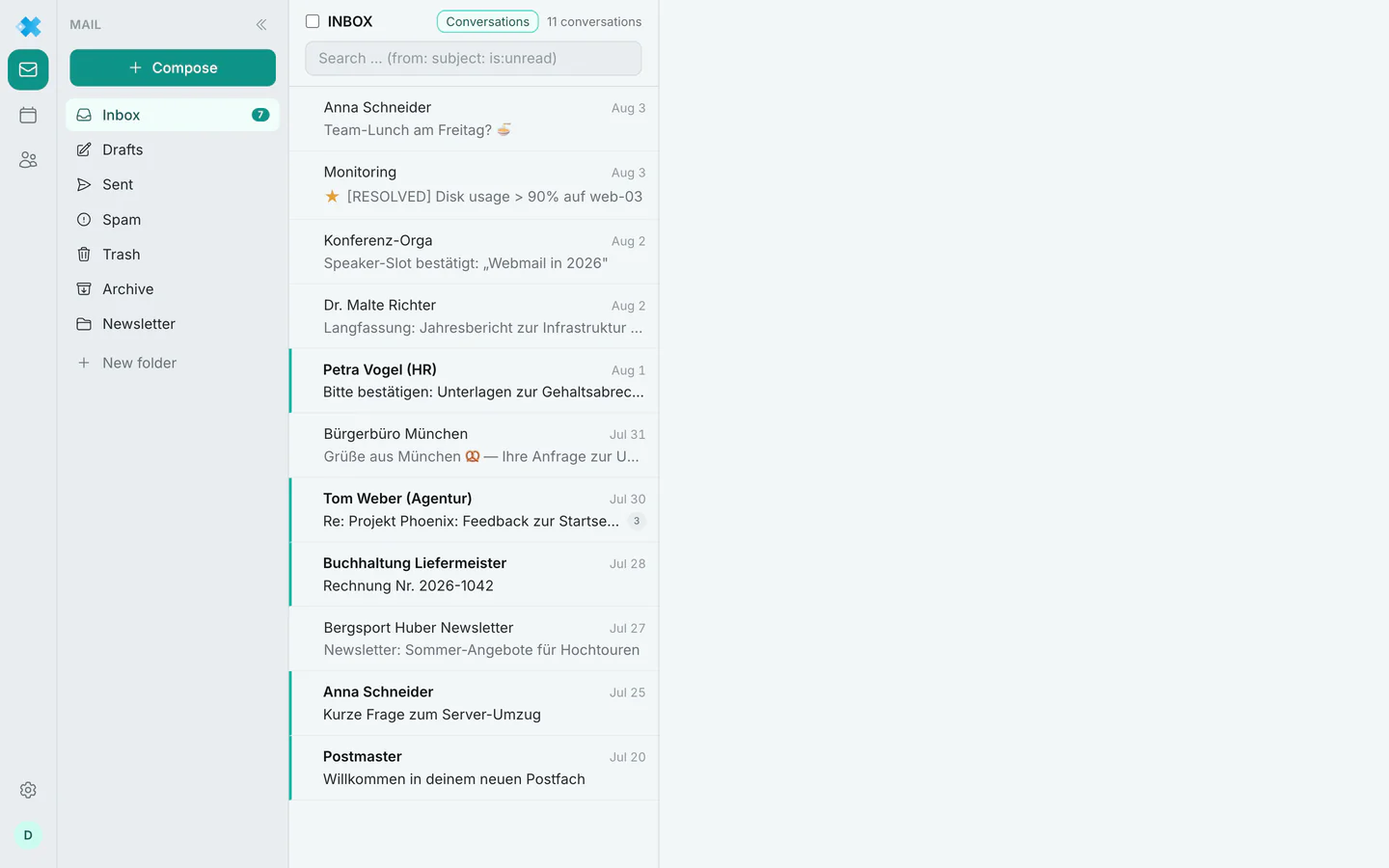
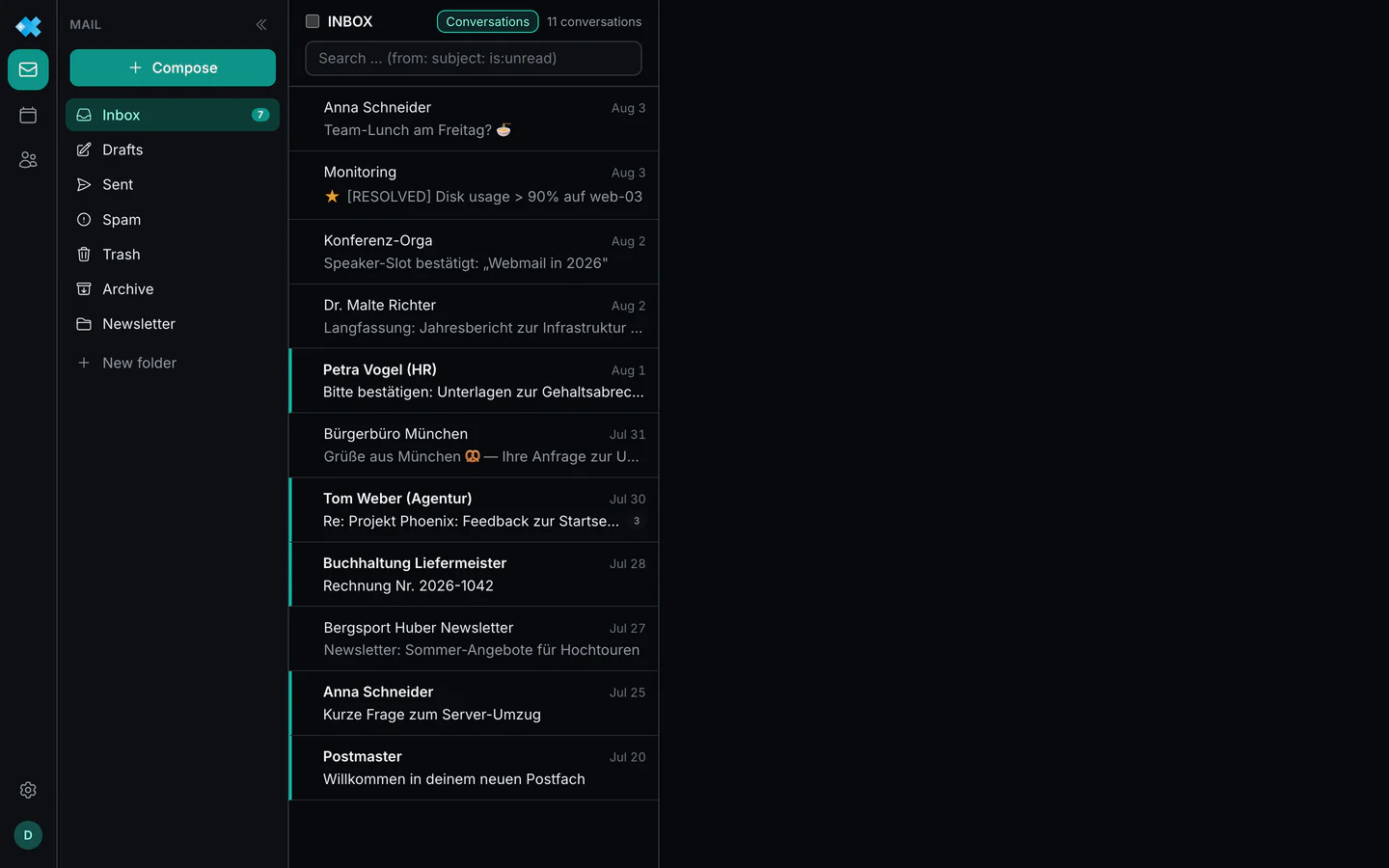
Layout
Section titled “Layout”On the far left the bar with mail, calendar, contacts and settings, next to it the folders, then the message list and on the right the open message. The list and the folders can be dragged wider or narrower, and the folders can be collapsed entirely. In a narrow window you read a message full screen and go back to the list with the arrow.
Folders
Section titled “Folders”The folder tree holds the standard folders Inbox, Drafts, Sent, Spam, Trash and Archive. Your own folders can be created, renamed and deleted.
Three rules apply, and the program states them itself:
- No dot and no slash in the name. Both separate the hierarchy on the server.
- INBOX is reserved.
- Standard folders cannot be renamed, because the program uses them itself.
Deleting takes the contained messages with it and cannot be undone. The dialog says so explicitly.
The message list
Section titled “The message list”- Conversations: messages of the same conversation share one row. The Conversations switch above the list changes to single messages.
- Below sender and subject there is a preview line from the message text.
- When you hover over a row, the most common actions appear right in the row.
Selecting several messages
Section titled “Selecting several messages”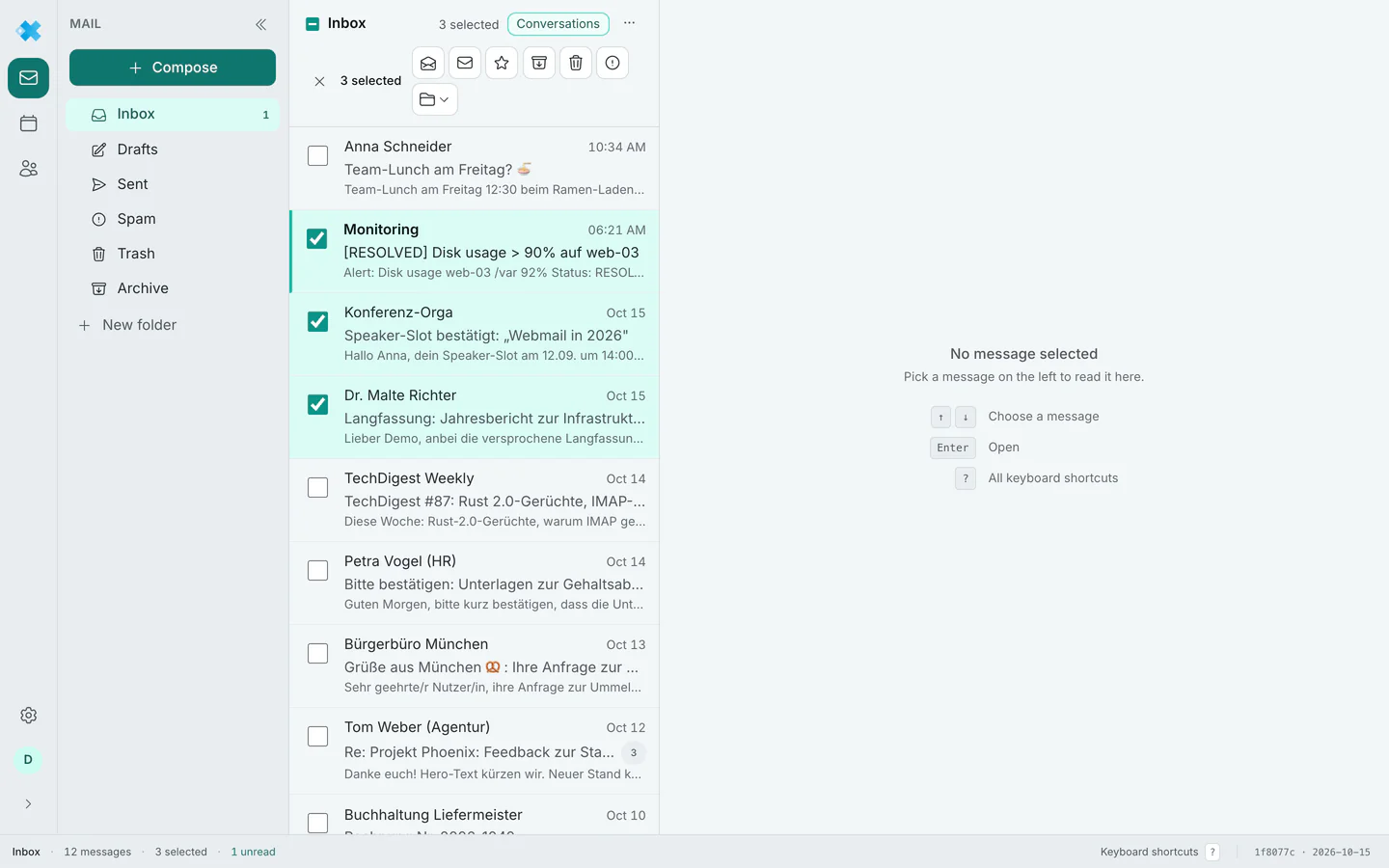
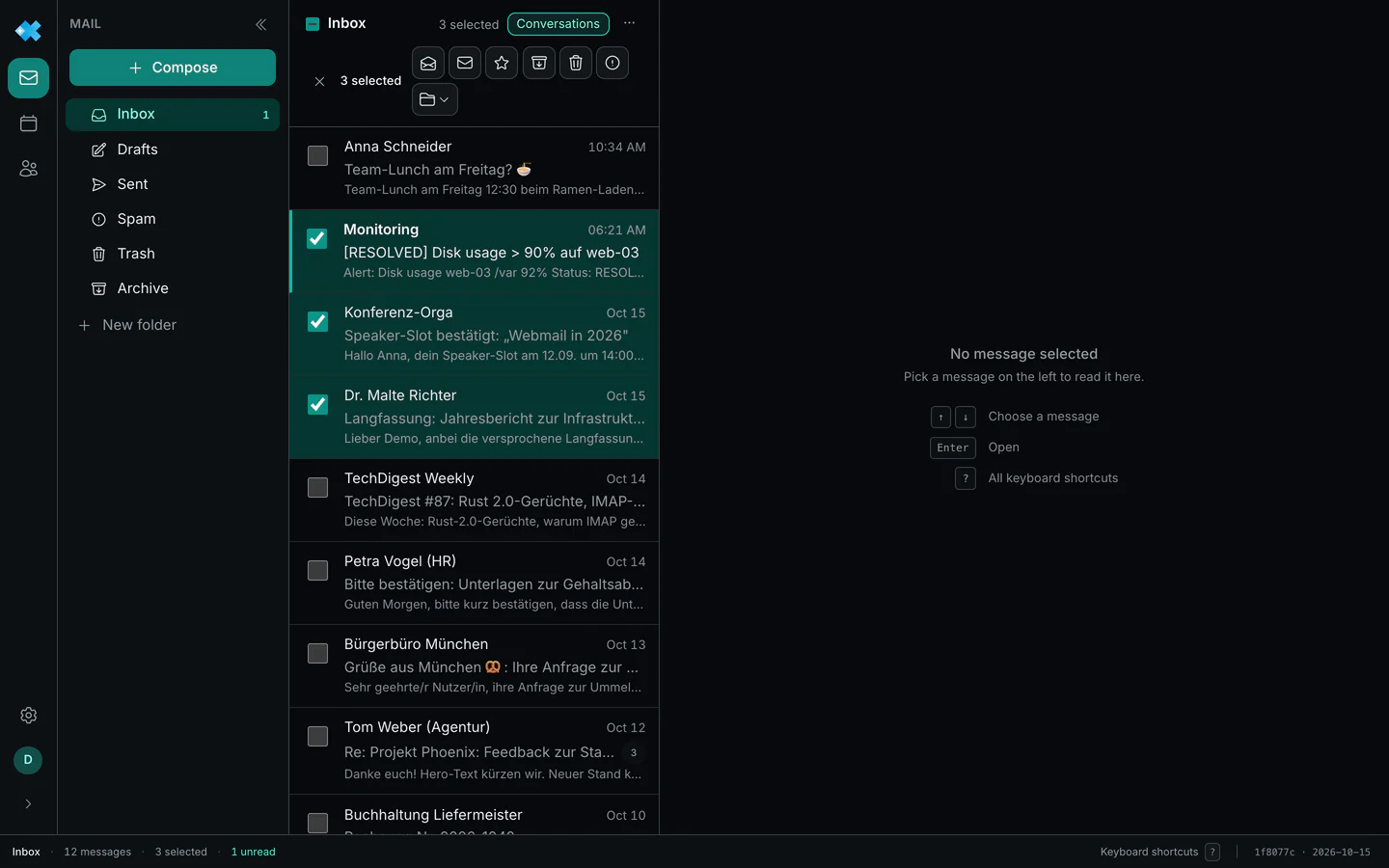
In front of every row the sender is shown as a circle with initials. A click on the circle turns it into a checkbox and selects the message. As soon as one message is selected, every row shows its checkbox, and each further click on one adds a message or takes it out.
- Ctrl-click, on the Mac Cmd-click, on a row adds it on its own or takes it out.
- Shift-click selects the range from the current row to the one you click.
- Shift+↑ or Shift+↓ extends the selection from the current row, and going back the other way makes it smaller again. With Shift and Home or End it reaches the first or last row, with PgUp and PgDn ten rows at a time.
xselects the current row, the checkbox in the list header all messages on the page.
Above the list you then find the actions for all selected messages: read, unread, flag, archive,
delete, spam and move. Esc or the cross in front of them clears the selection.
Reading messages
Section titled “Reading messages”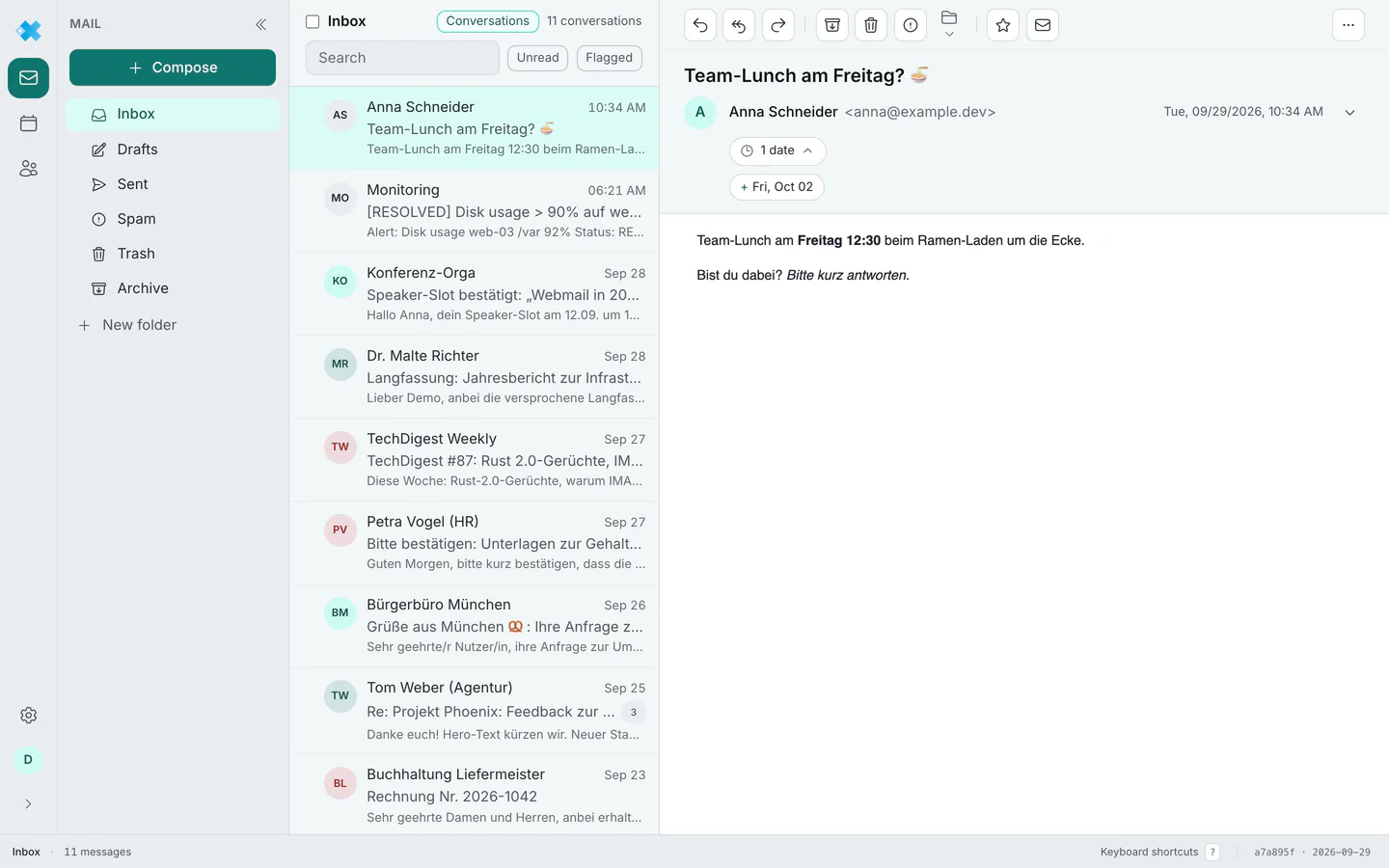
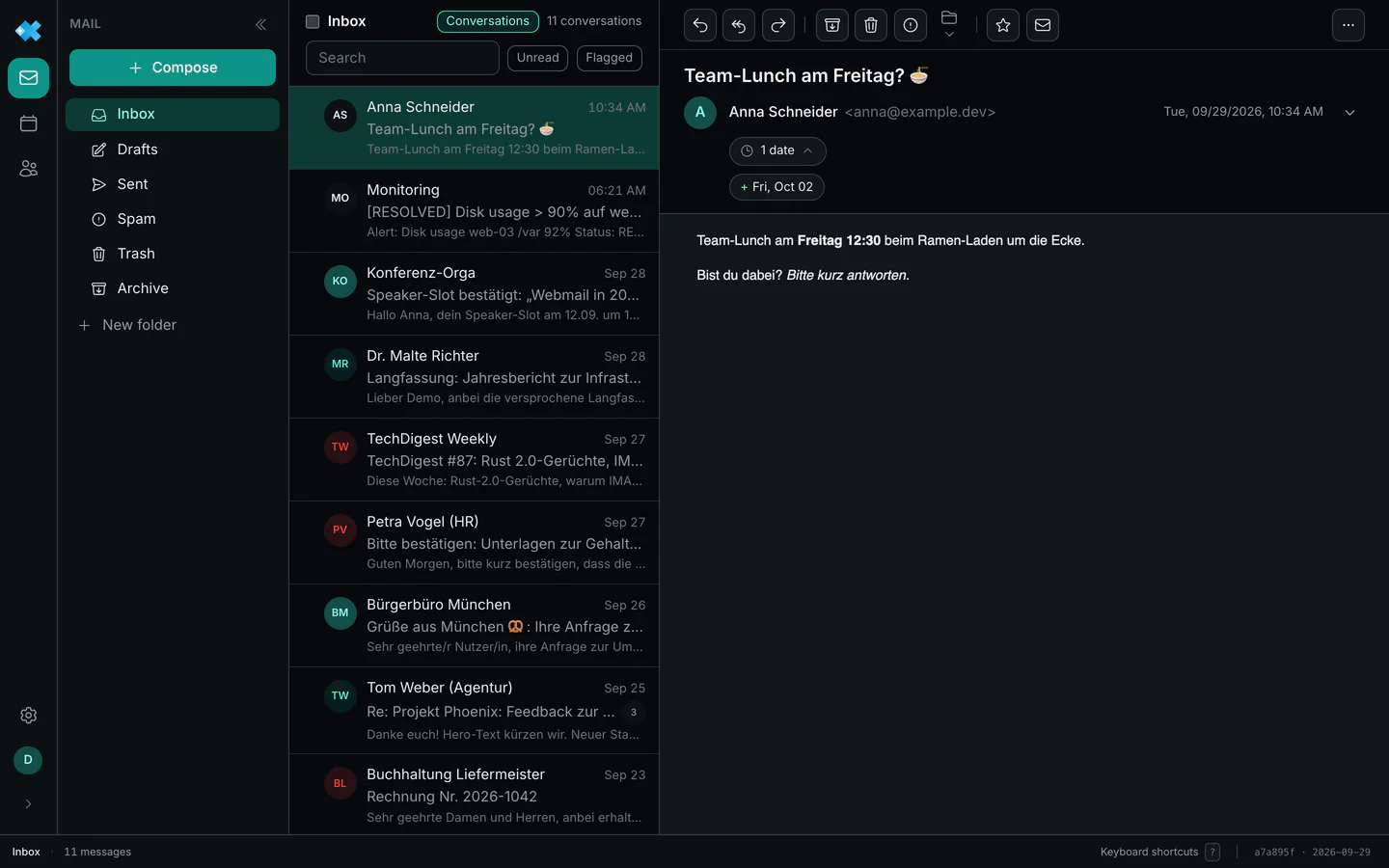
A message header is collapsed: subject, sender with address, date and a small mark for the sender checks. The arrow next to it opens the details: recipients, the sender actions (add contact, create rule, block sender) and the full security display. The webmail remembers how you left it.
- Sender checks: the mark next to the sender sums up SPF, DKIM and DMARC as our mail server checked them on arrival. A warning, for instance when DMARC failed, is always shown in full, even with the header collapsed.
- Remote images are not loaded at first, because they tell the sender when and where you open a message. One click loads them for this message; the webmail then asks whether to always load images from this sender. The list of those senders and a default for all are in the settings under Security.
- Invitations appear as a card with accept, tentative and decline, including a check against your calendar. Dates in the text are detected and shown as a count; one click lists them, another creates the event. More in calendar and contacts.
- The reading width (narrow, medium, full width) is set in the message toolbar. It helps with messages without a layout of their own, which otherwise run across the whole window.
Searching
Section titled “Searching”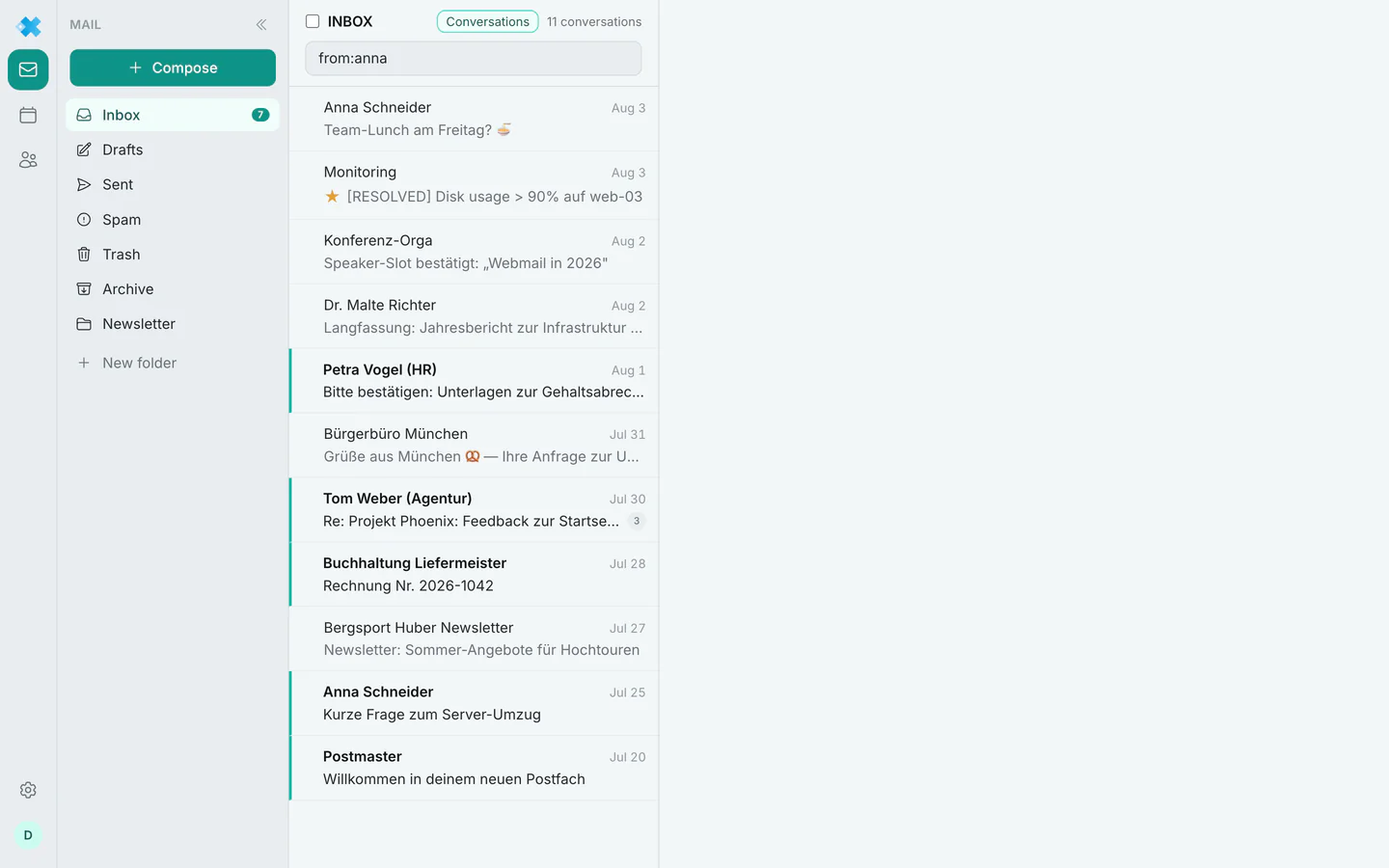
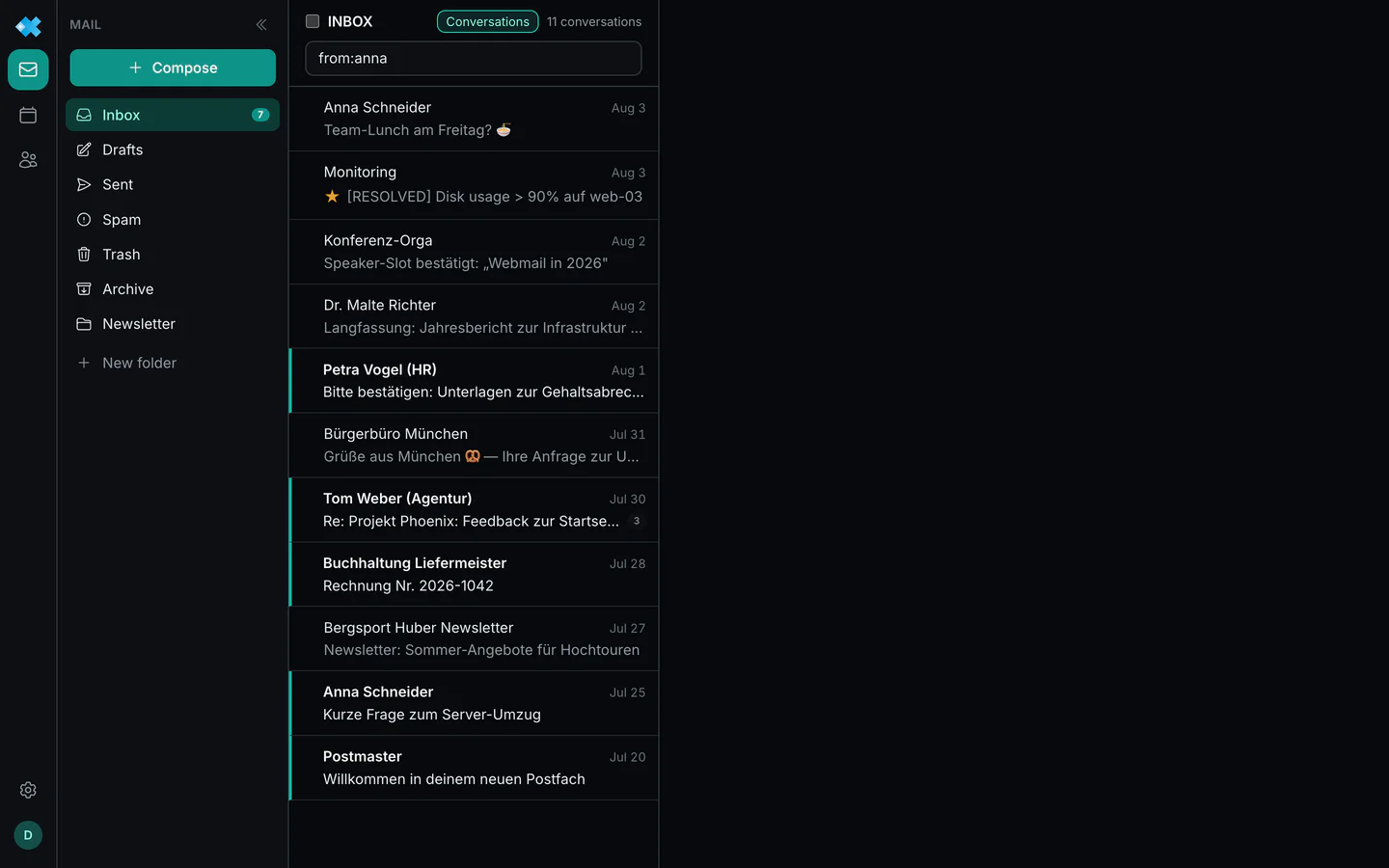
By default the webmail searches all folders except trash and spam. Matches in subject and sender appear at once; matches in the message text of the other folders follow shortly after. If the matches come from several folders, every row shows where it is. If a folder cannot be searched, the list names it.
Above the search field you switch to This folder; the choice stays until you change it. If the search finds nothing there, the list offers Search all folders.
The search field understands operators, not just keywords:
| Operator | Searches for |
|---|---|
from: | Sender |
to: | Recipient |
subject: | Subject |
is:unread is:read | Read state |
is:flagged is:answered | Flags |
before: after: | Date |
The German forms (von:, an:, betreff:, ist:, vor:, seit:) work as well.
Composing
Section titled “Composing”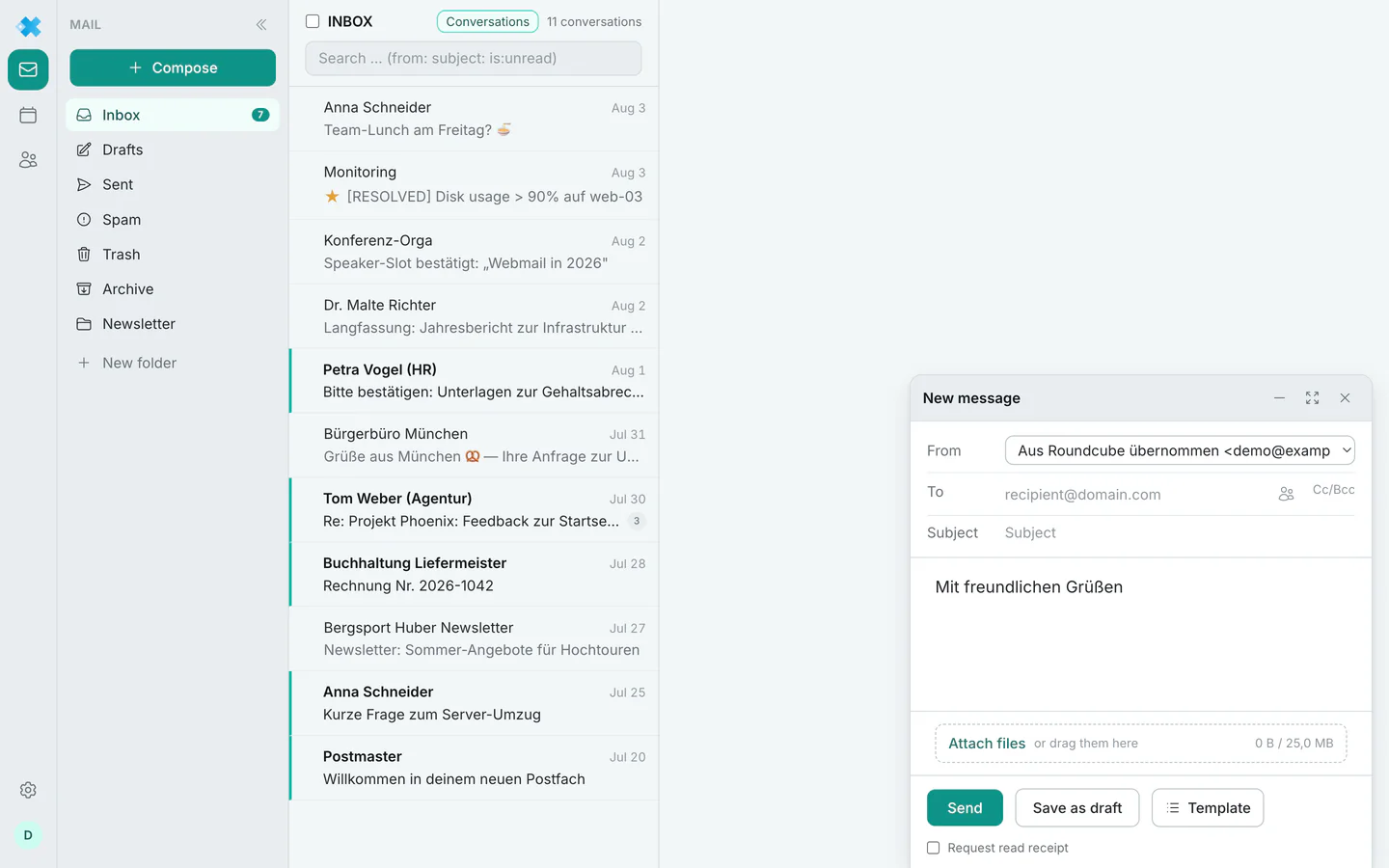
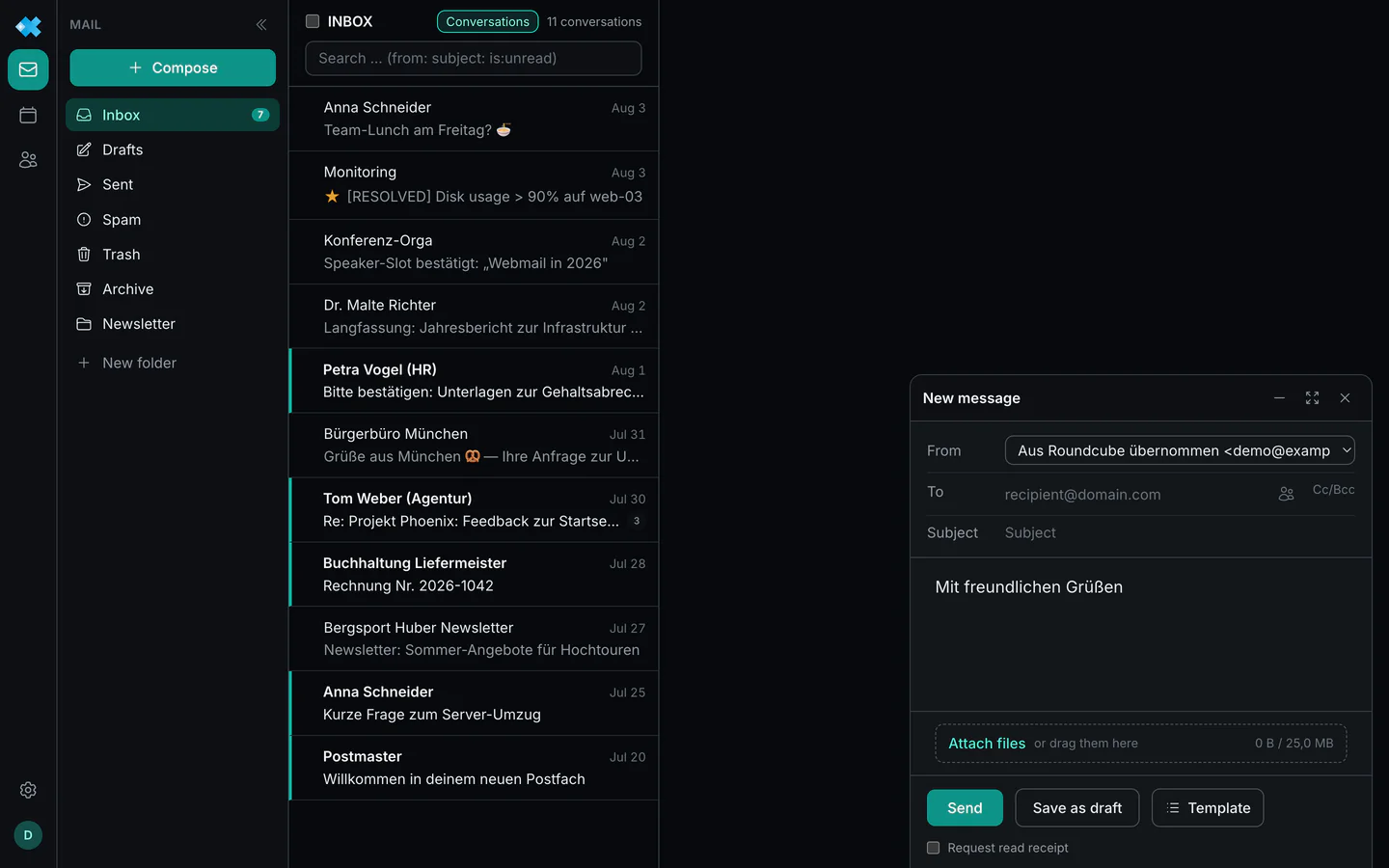
A new message opens in full screen, the way a message has all the room when you read it. At the top right you switch to a floating window. The webmail remembers the choice in this browser and opens all further messages that way.
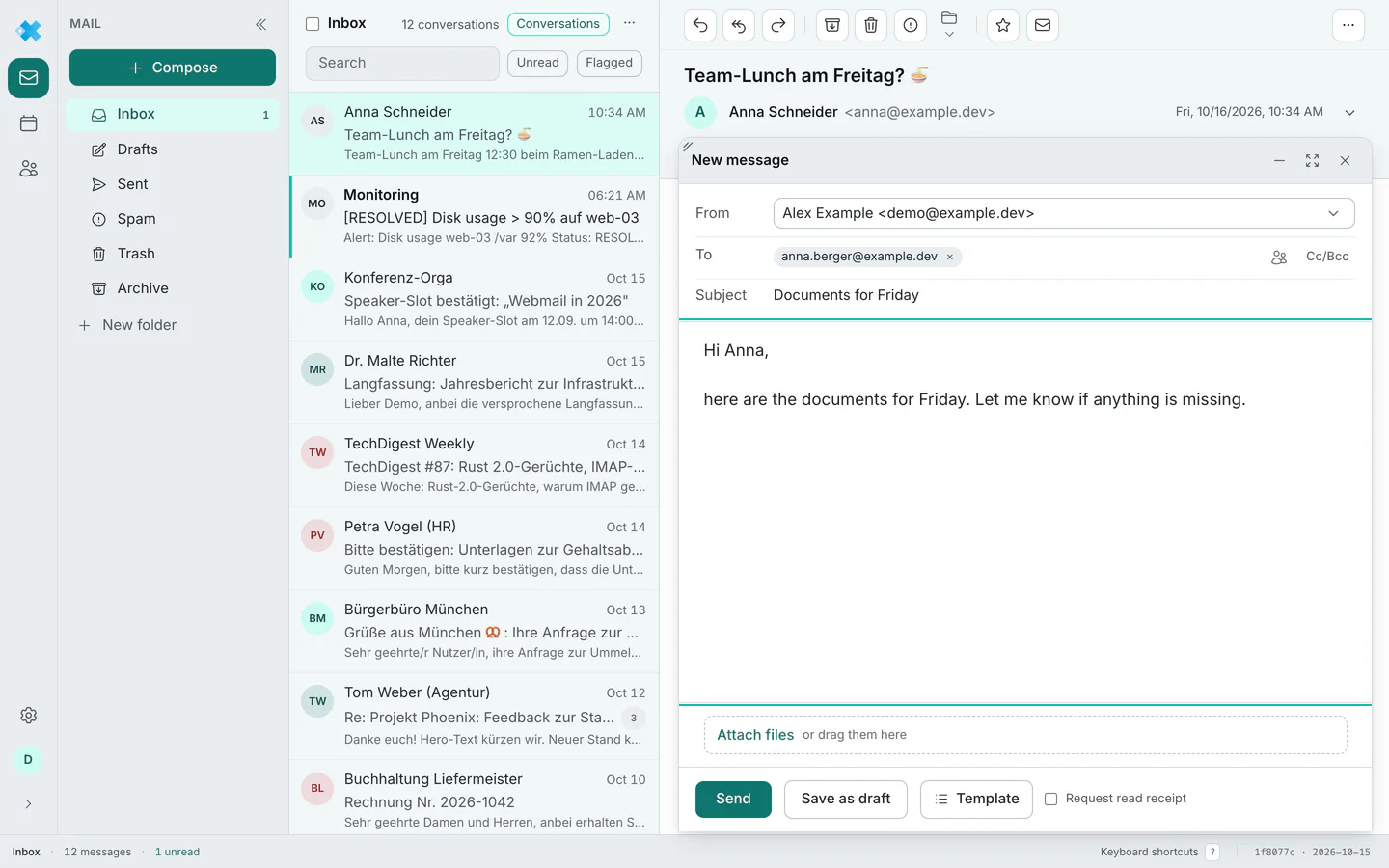
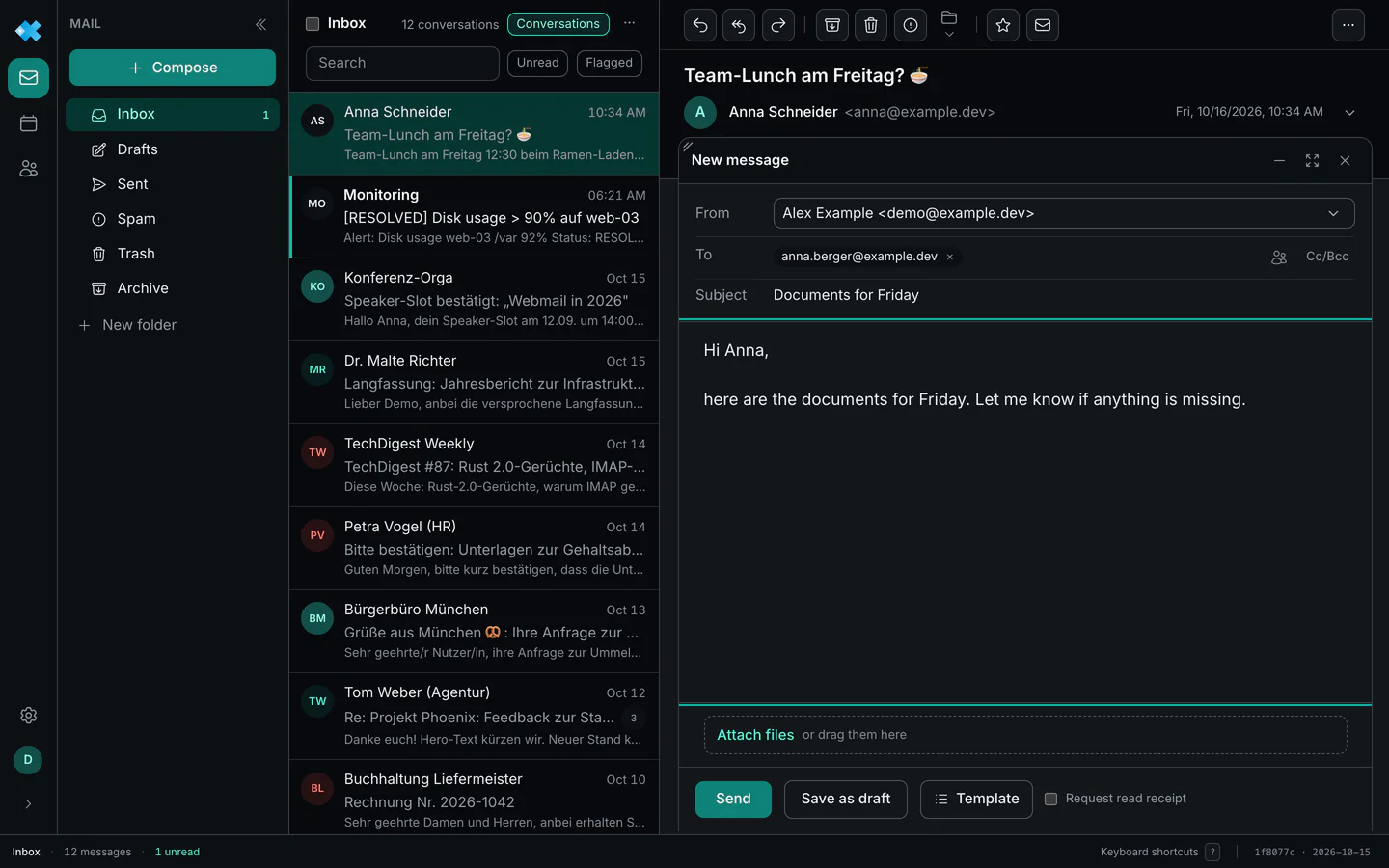
The floating window starts at half the width and 80 % of the height of the browser window, so
folders and list stay visible beside it. With the handle in the top left corner you drag it
larger, up to the edge of the browser window; that size holds next time as well. In both views the
dash at the top right collapses the window into a bar at the bottom edge, and so does Esc.
Reply, reply to all and forward set the quote and the threading headers correctly. When you forward, the attachments come along; whatever should not go, you remove before sending. As the sender you choose your main address or an alias, and the signature follows the chosen identity. There are also Cc and Bcc, recipient completion from your contacts, attachments by picking or dragging, a read receipt on request and the templates.
In the address fields and the subject, Enter moves to the next field, and from the subject into
the text; nothing is ever sent by accident. You send with the button or with ⌘Enter (Ctrl+Enter
on Windows and Linux), from anywhere in the window.
Two limits are built in: at most three compose windows at a time, and a total size for attachments that is named when exceeded.
The copy in Sent is exactly the message that was sent, and it is marked as read right away. Replies to your own messages therefore land in the right conversation.
Drafts
Section titled “Drafts”Whatever you write, the webmail saves to the Drafts folder by itself after a short pause in
typing. A click on a draft, or Enter in the list, opens it so you can carry on writing. When you
read a draft, Continue draft comes first in the toolbar.
After sending, the message stays in Drafts as a backup for as long as Undo is offered. That row is labelled Sending and does not open for editing; once the message has gone out, it disappears by itself.
Actions such as archiving, deleting or moving show a notice with Undo. Sending can be pulled back for ten seconds as well. That is the basic stance of the interface: act at once and be able to take it back, rather than asking first every time.
Keyboard
Section titled “Keyboard”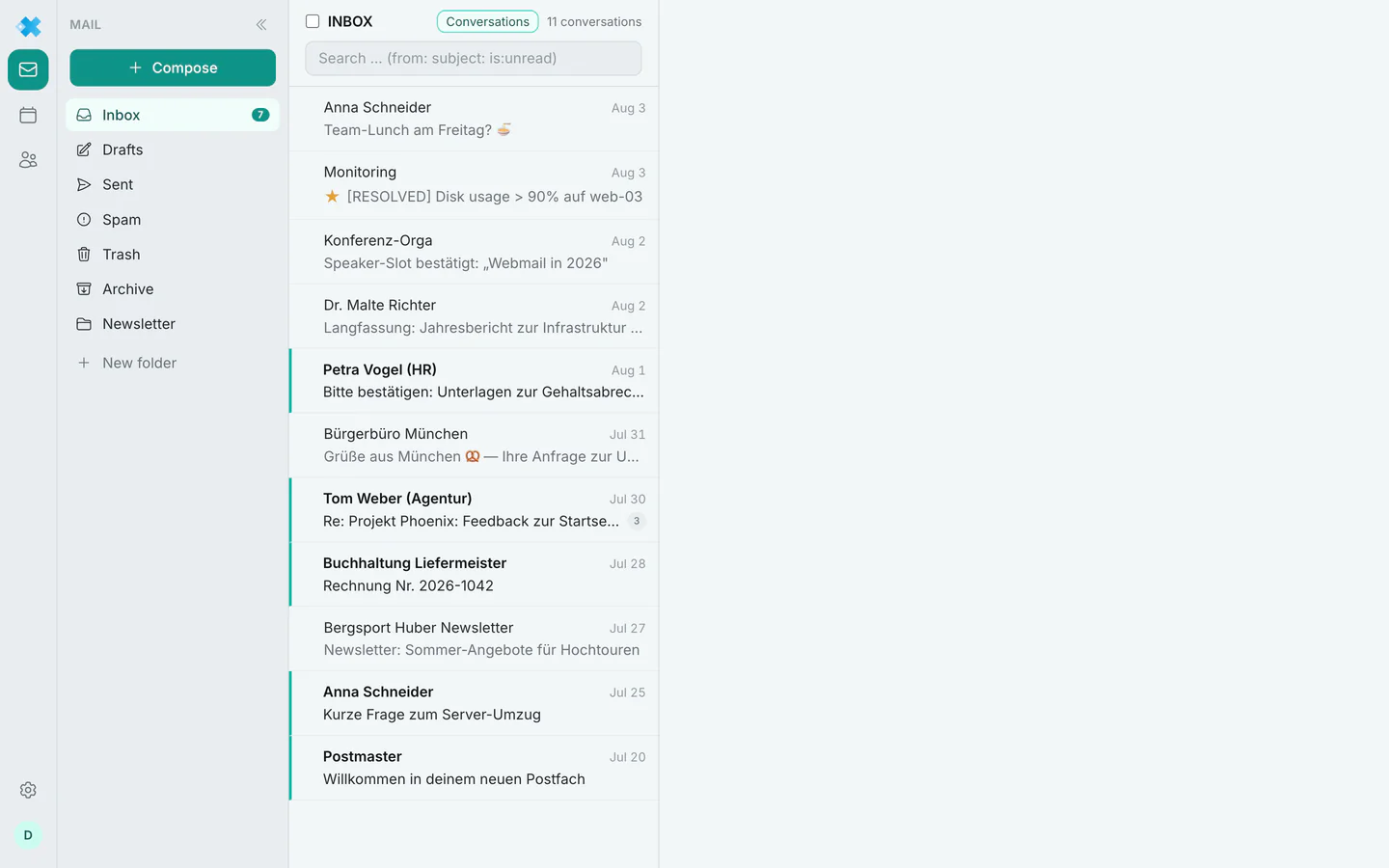
⌘K (Ctrl+K on Windows and Linux) opens the command palette, where navigation, actions and
appearance can be searched. ? shows the overview of all shortcuts.
| Key | Effect |
|---|---|
c or ⌘N | New message |
/ | Focus search |
g then i s d a t | Inbox, Sent, Drafts, Archive, Trash |
g then c k | Contacts, Calendar |
j k or arrow keys | Next, previous row |
Enter or o | Open message |
u | Back to the list |
x | Select row |
⇧↑ ⇧↓ | Extend the selection, likewise with Home, End, PgUp and PgDn |
r a f | Reply, reply to all, forward |
e | Archive |
Delete or # | Delete |
! | Mark as spam |
s | Flag |
⇧I ⇧U | Mark as read, mark as unread |
Esc | Close, clear selection |
⌘Enter or Ctrl+Enter | In the compose window: send |
Appearance
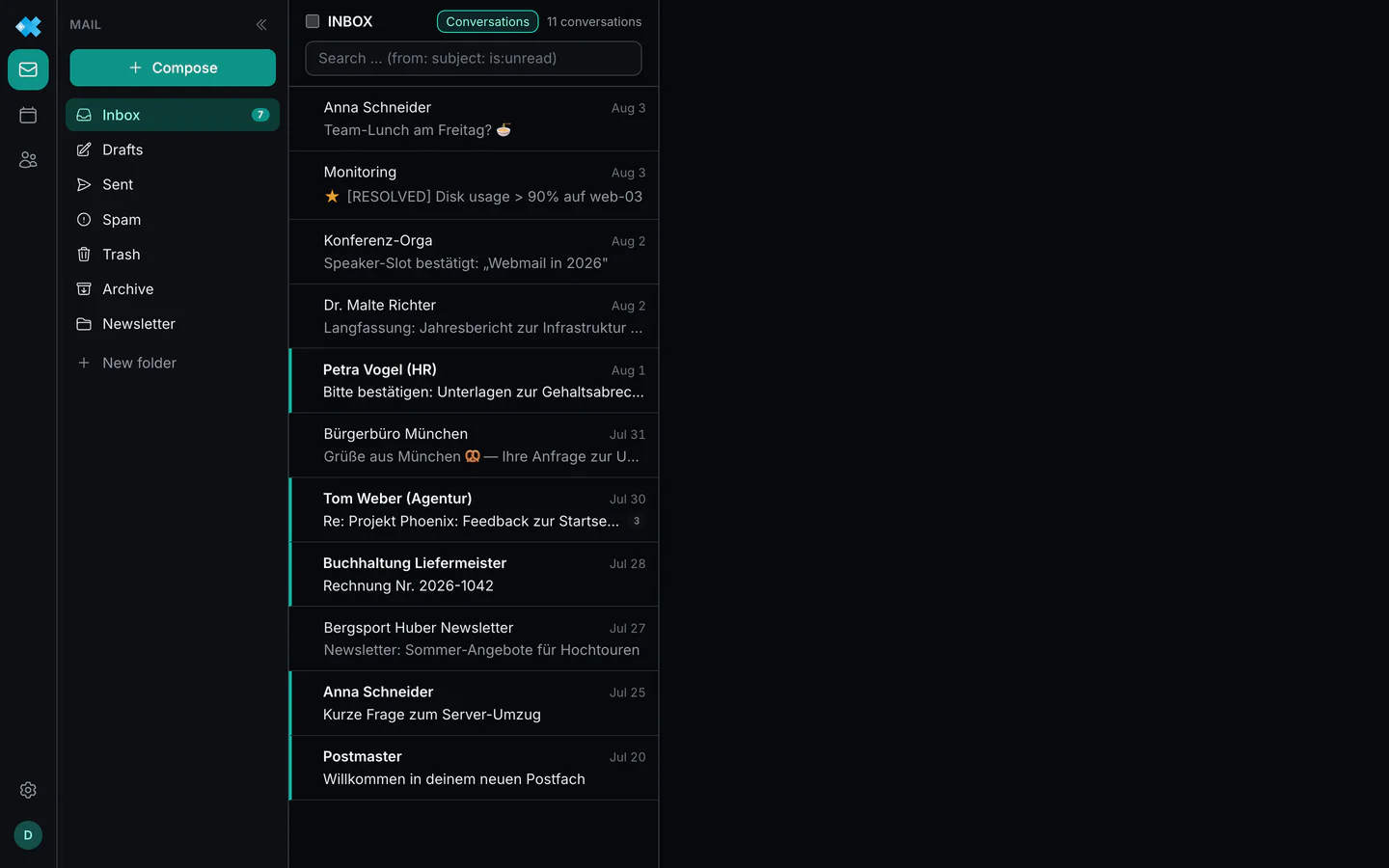
Section titled “Appearance”In the account menu at the bottom left you set the language (German or English), the appearance (light, dark or like the system) and the colour theme. All of it is also available in the command palette. Conversations and reading width are covered above under the message list and reading messages.
On the phone
Section titled “On the phone”On the phone, mail, calendar, contacts and settings sit in a bar at the bottom edge.
- Swipe across a row: to the right to archive, to the left to move it to the trash. Undo works as usual.
- Select above the list shows the boxes permanently, for several messages at once.
- Reading and composing run in full screen; there is no floating window on the phone.
Signing in
Section titled “Signing in”You reach the webmail at regfish.com/webmail. Opening it via
regfish.de or www.regfish.com takes you there, so your sign-in and passkeys apply in one place.
You sign in with your mailbox address and password, optionally with a passkey and a second factor (see security). The mailbox password is set by the owner of the regfish account in the dash. If you forgot it, the sign-in page points you there.
What changes
Section titled “What changes”What is new in the webmail is listed in the changelog. In the webmail, the version at the bottom right leads there.