

Set up DynDNS
If you run a server at home, your provider usually does not hand out a fixed IP address. With dynamic DNS the device submits the new address itself as soon as it changes - so the domain keeps pointing at the right connection.
Turning it on
Section titled “Turning it on”Domains → your domain → DynDNS, direct address:
dash.regfish.com/my/domains/<tld>/<sld>/dyndns
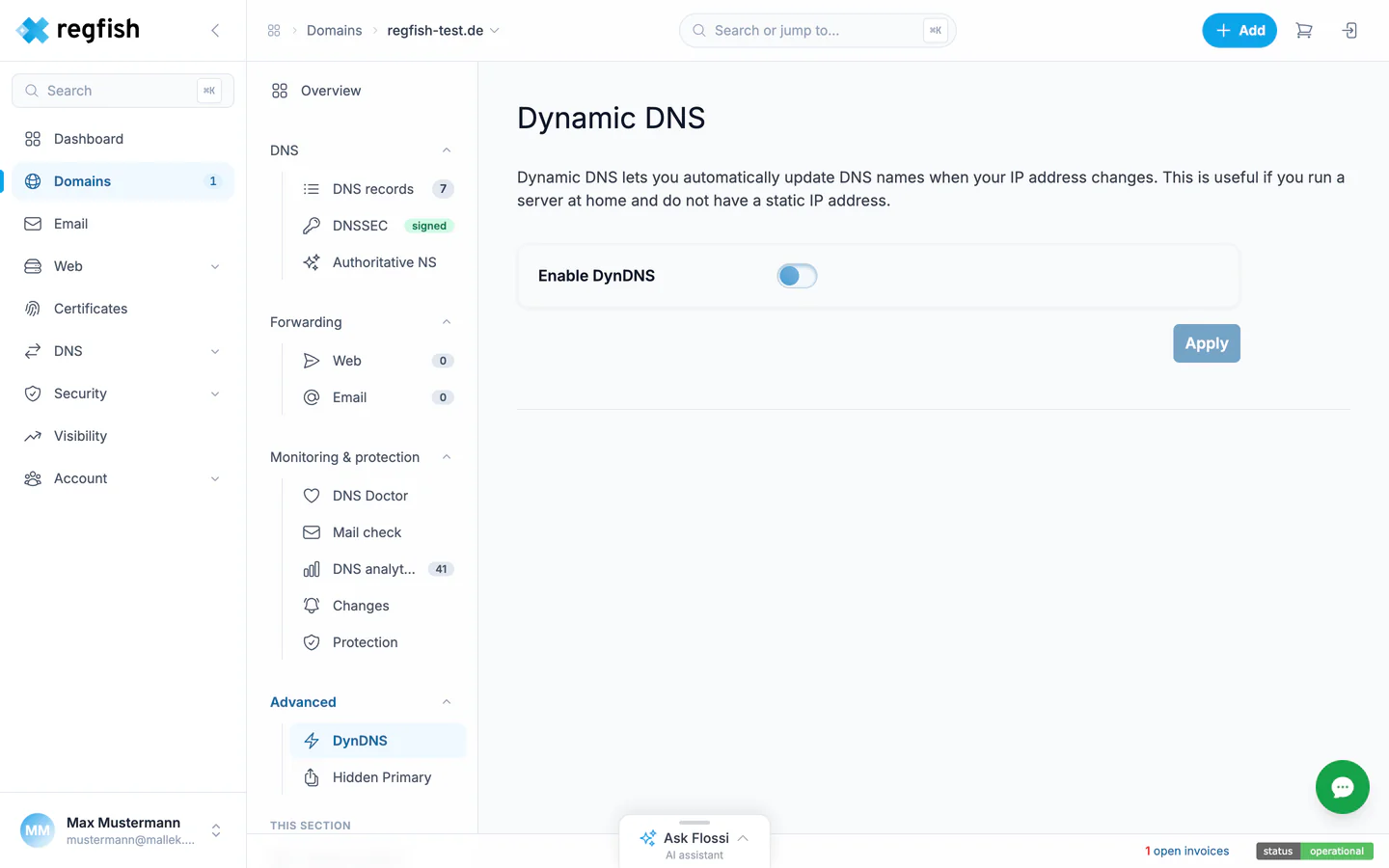
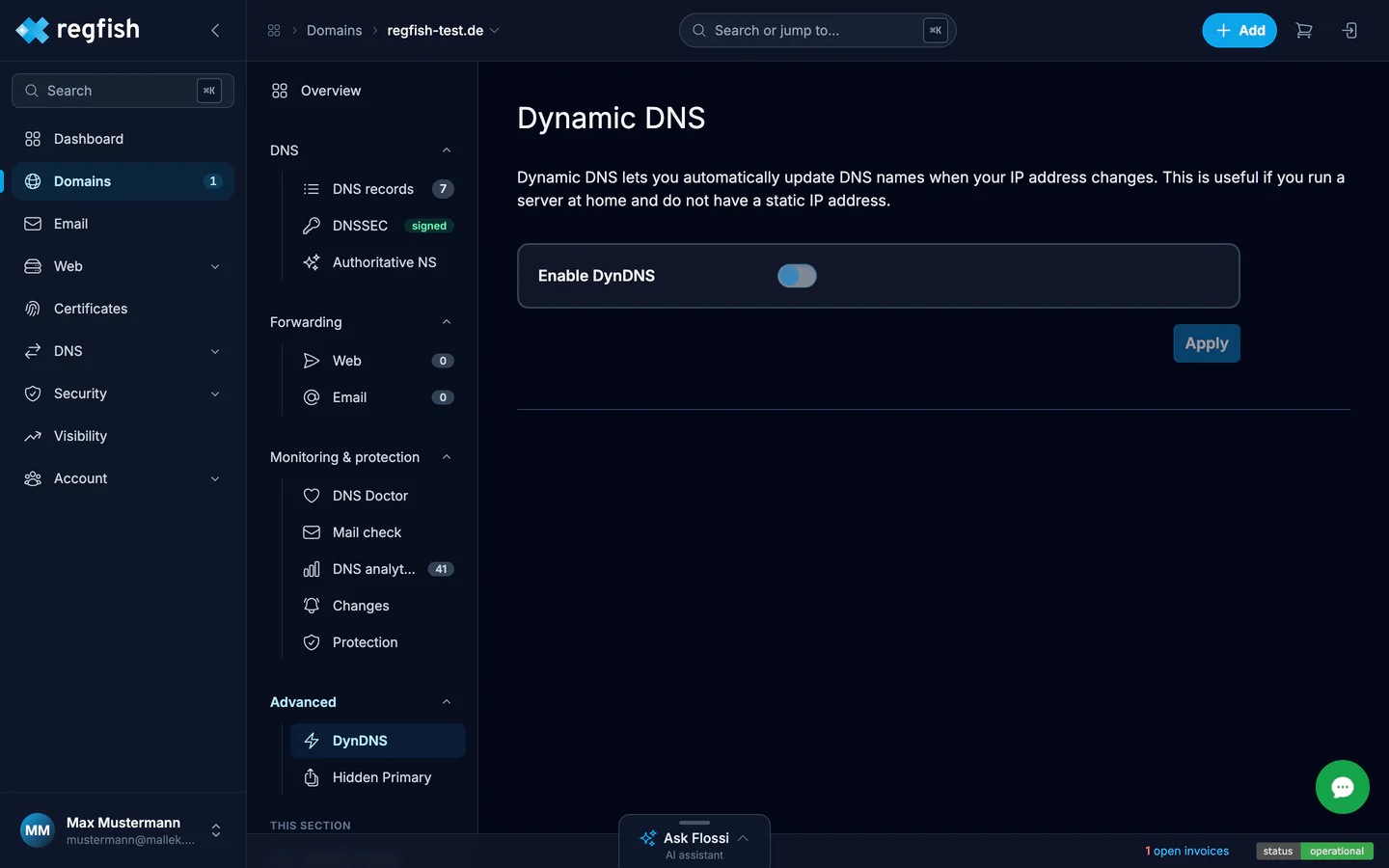
Set the Enable DynDNS switch and confirm with Apply. The page then shows the DynDNS token it generated. Enter that token in your router as the username - it replaces username and password in one.
Whether DynDNS is on for a domain is also shown by the DynDNS tile on the domain overview.
Entering it in the router
Section titled “Entering it in the router”The update URL differs depending on whether you want IPv4, IPv6, or both to be maintained. For the FRITZ!Box, the full procedure with all three variants has a recipe of its own:
Set up regfish DynDNS on an AVM FRITZ!Box
The same pattern applies to other devices: enter the update URL, set the token as the username, specify the domain.
Doing it with your own script
Section titled “Doing it with your own script”Instead of a router, a script can just as well keep the address up to date - useful on a server that is running anyway, or when several names need updating at the same time. The DynDNS via IP comparison recipe walks through it: determine the current address, compare it with the record, write only when they differ.
The matching endpoint is PATCH /dns/rr.