

Edit DNS records
DNS records determine where your domain points: which IP address a website has, which server accepts email, which text entries serve as verification.
Where the records live
Section titled “Where the records live”Domains → your domain → DNS → DNS records, direct address:
dash.regfish.com/my/domains/<tld>/<sld>/zone/records
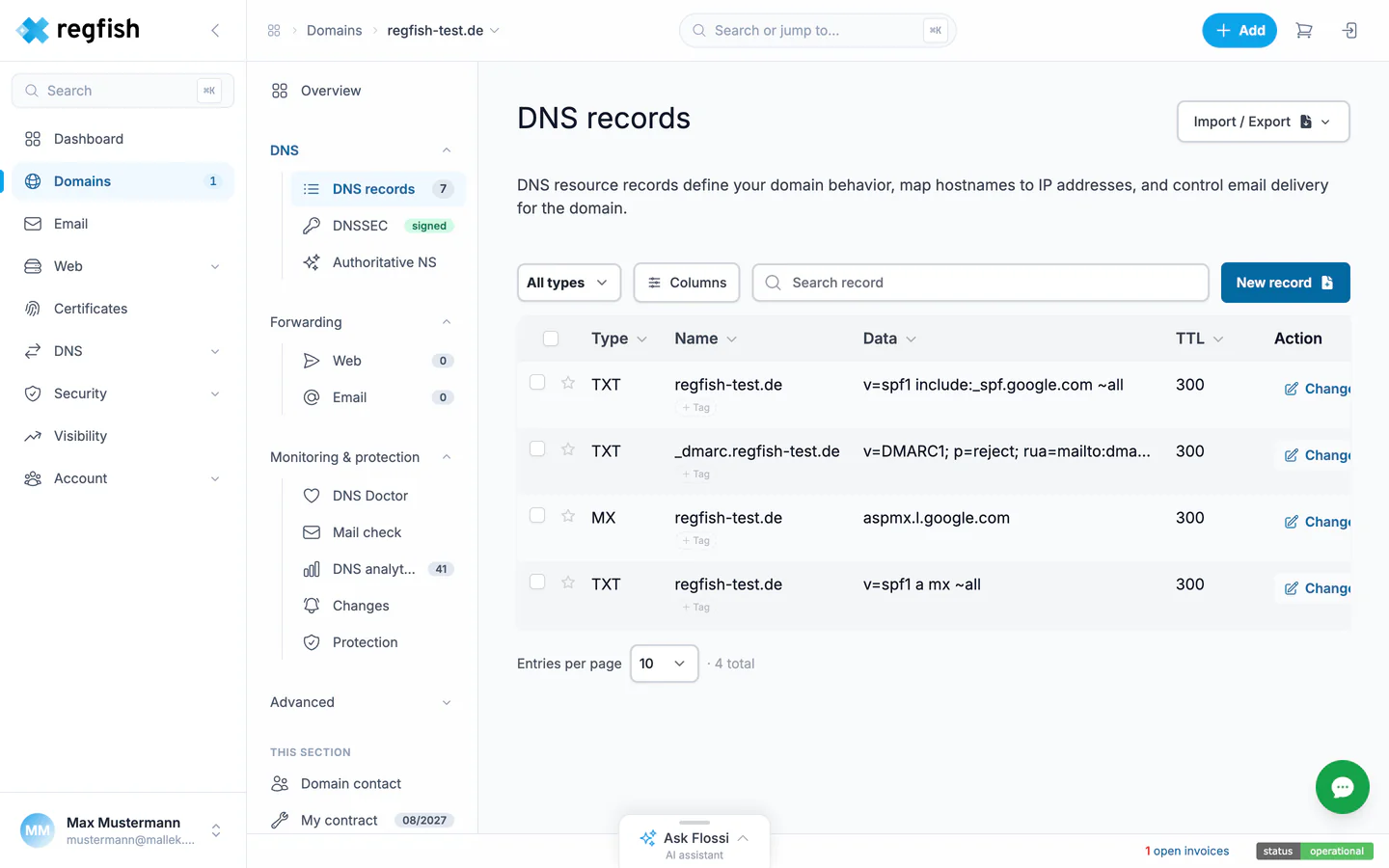
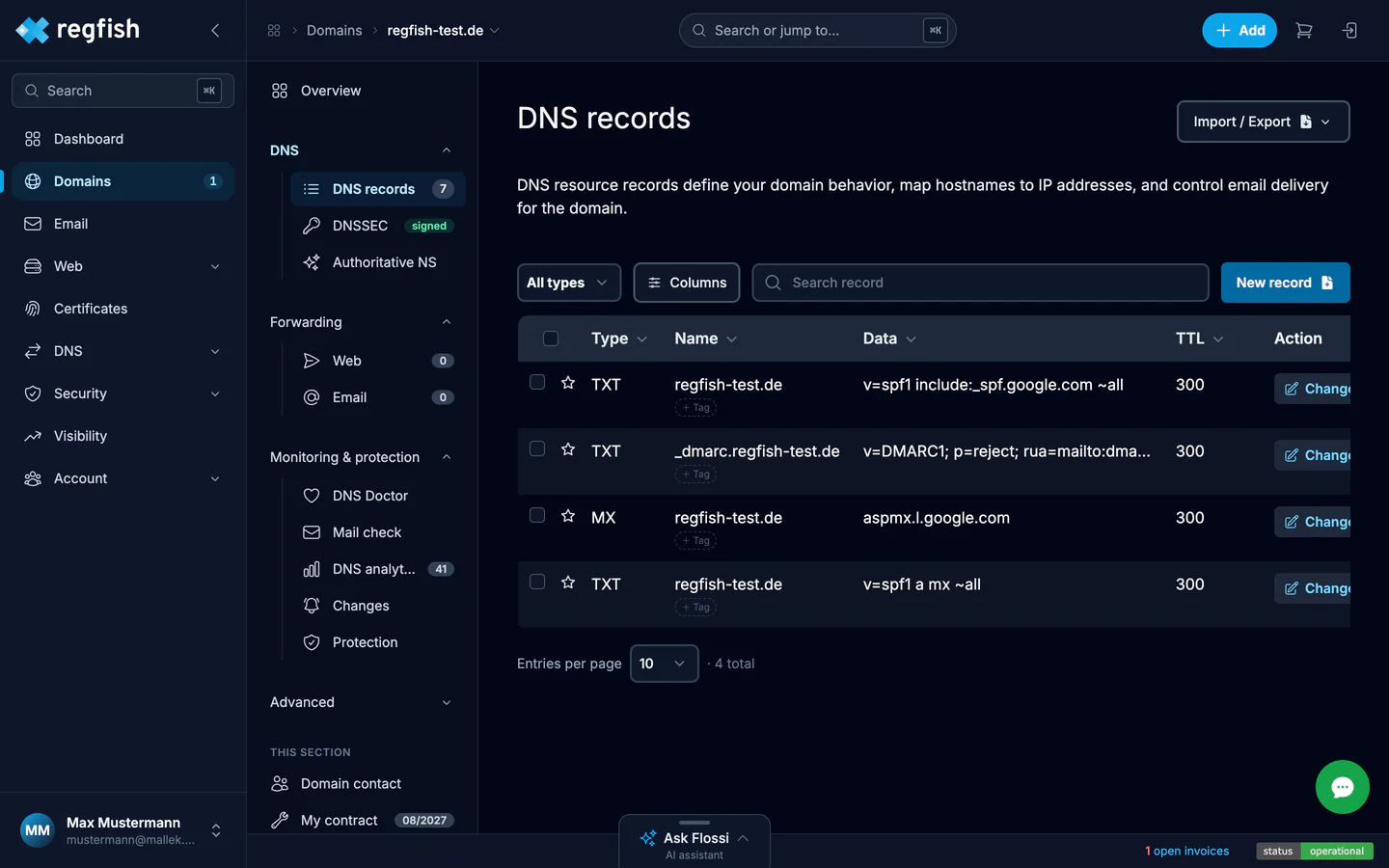
For each record the table shows Type, Name, Data, TTL, and an Action column with a Change link. Above it sit the tools:
- All types filters by record type, for example
MXonly orTXTonly. - Columns shows and hides columns.
- Search record filters by name and data.
- New record creates a record.
- Import / Export in the top right reads in a zone file or writes the zone out as a BIND file.
At the bottom, Entries per page sets how many records are shown at once.
Creating a record
Section titled “Creating a record”-
Choose New record.
-
Set the Type. What you have to enter depends on it:
Type Data field Used for AIPv4 address Web server over IPv4 AAAAIPv6 address Web server over IPv6 CNAMETarget name Pointing to another name MXMail server + priority Email delivery TXTFree text SPF, DKIM, DMARC, domain verification CAAFlags, tag, value Which certificate authority may issue ALIASTarget name Like CNAME, but also allowed at the domain root -
Enter the Name. For the domain itself the domain name is enough; for a subdomain use the full name (
www.example.de). -
Set the TTL - the time in seconds that resolvers cache the response. Allowed values are 60 to 604800. Ahead of a planned change, a low value is worth setting so the change takes effect quickly.
-
Save.
Editing and deleting
Section titled “Editing and deleting”Edit in the row opens the record for editing. To delete, select the row with the checkbox on the left and confirm the deletion.
The same thing through the API
Section titled “The same thing through the API”| Task | Endpoint |
|---|---|
| List records | GET /dns/{domain}/rr |
| Create a record | POST /dns/rr |
| Change a record | PATCH /dns/rr/{rrid} |
| Delete a record | DELETE /dns/rr/{rrid} |
| Export the zone | GET /dns/zones/{domain}/export |
The rrid is a record’s ID; it comes back in the response of GET /dns/{domain}/rr.
If you change records from a script, take a look at the DNS change with rollback recipe - it shows how to undo a change that failed.
Checking that the change has landed
Section titled “Checking that the change has landed”The DNS Doctor tile on the domain overview checks the zone for typical mistakes. To find out whether a change is already visible worldwide, use the propagation check under Monitoring & protection.
Automating this
Section titled “Automating this”Everything on this page also works without a browser: through the DNS endpoints, through the DNS recipes for recurring workflows, or through the MCP server when an AI assistant is meant to maintain the records.