

Signing in and resetting the password
Two routes lead into the dash, and both end in the same session.
Where it starts
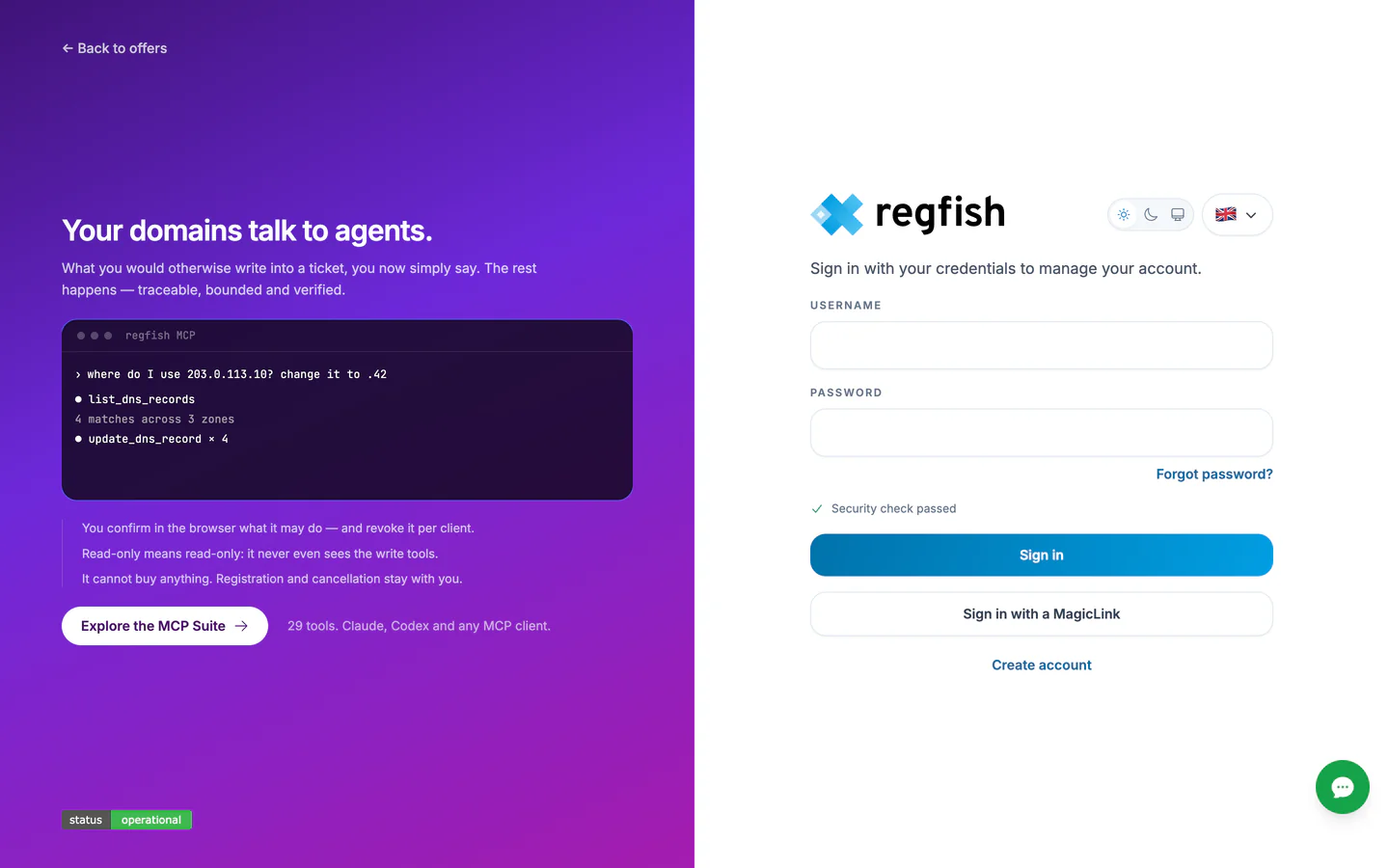
Section titled “Where it starts”dash.regfish.com/login
With a password
Section titled “With a password”Username or email address and password. If a second factor is set up for the account, the step with the one time code or the passkey follows. Which methods are available is covered under account security.
If the passkey is missing on the device in front of you, it is probably still on the device where you created it: older devices do not pass it on. The way back into the account then runs through the recovery codes, and the background is under account security.
If the sign in page loads but nothing happens when you press sign in, the device is usually too old. What the dash needs as a minimum is covered under system requirements.
With a magic link
Section titled “With a magic link”Instead of the password you can request a one time sign in link by email. You only give the address and receive a link that signs you in directly.
Three properties are built that way on purpose:
- The answer gives nothing away. It looks the same whether the account exists or not. So the form cannot be used to find out which addresses are customers.
- Requests are limited. Asking repeatedly in quick succession gets throttled.
- The link is purpose bound and expires. It is only valid for signing in and only for a limited window; after that it leads back to the sign in page.
The second factor is not skipped by this: if it is set up, it is required after a magic link too.
Resetting the password
Section titled “Resetting the password”The entry point sits on the password page as forgot your current password? reset it by email
and leads to dash.regfish.com/login/recover. The flow sends a code to the address on file, which
you enter on the following page; after that a new password can be set.
If you have neither the password nor the address on file, only support can help. Which is why it pays to keep the recovery codes from account security somewhere separate from your phone.
After signing in
Section titled “After signing in”Where to find what is described in how the interface is laid out.